Pete Gypps26 August 2026 · updated 09 October 2026
2 min read161 words
The follow-on from a local-account setup: how to connect Microsoft 365 or any work or school account to Windows 11 through Settings, step by step with screenshots.
If you followed our guide to setting up Windows 11 with a local admin account, your machine is yours, with nothing linked. When the time comes to use Microsoft 365 or connect to your workplace, you add the account afterwards, on your terms. Here is the whole thing.
Steps to connect an account
Open Settings by pressing the Windows + I keys on your keyboard
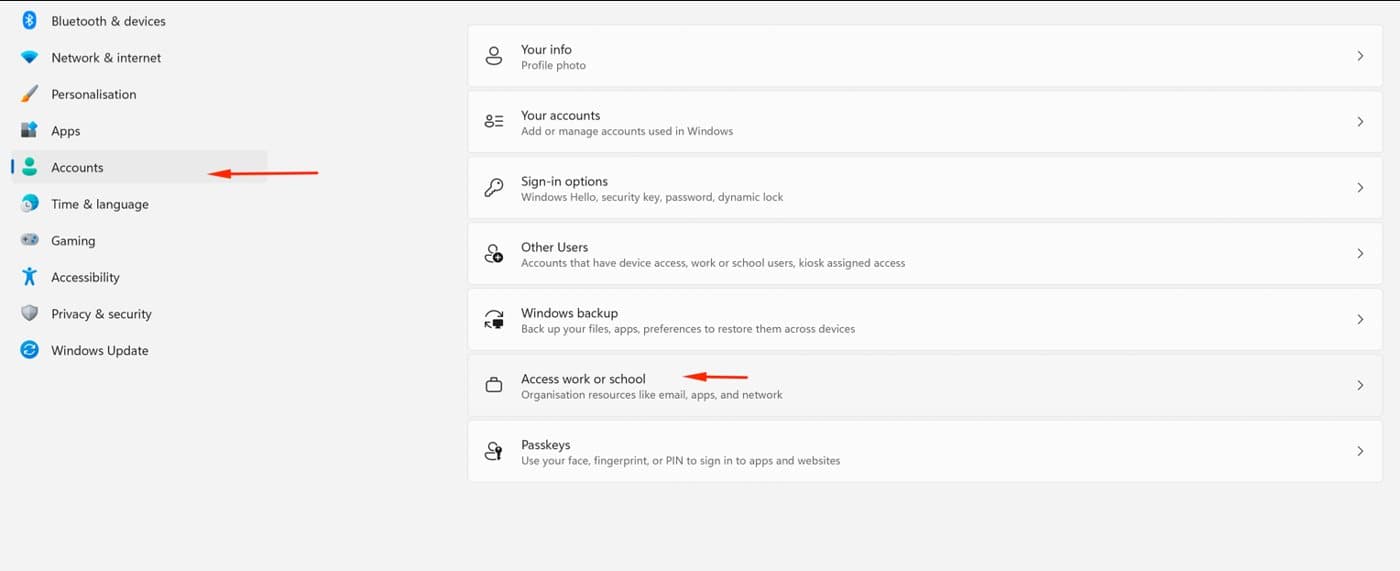
Select Accounts from the left-hand menu
Click on Access work or school on the right side
Click the Connect button next to "Add a work or school account"
Type your work or school email address and click Next
Enter your password and click Sign in
Follow any remaining on-screen prompts to register the device, then click Done
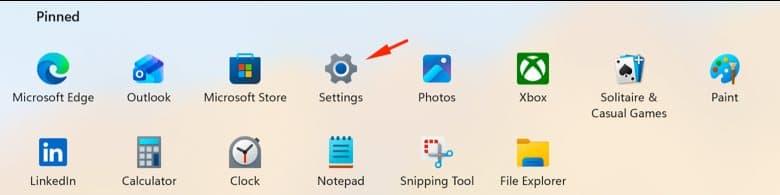
Settings also lives in the Start menu if you prefer the mouse to Windows + I.
Accounts, then Access work or school.
Connect, then sign in with your work or school email.
The Shift and F10 trick that gets a new Windows 11 machine set up with a local admin account: no Microsoft login, no forced Wi-Fi connection, full control from the first boot.
A one-click desktop app for a family law solicitor, because the best tool is the one that fits how you actually work. Native Mac app, no login, no browser; the matter folder syncs straight to SharePoint through OneDrive.
A short, opinionated list of the security and tooling decisions every employer owes their staff in 2026. Phishing training, password managers, the no-emailed-link rule, and MFA explained plainly for people who don’t spend their day thinking about this.